H3llo Phone

The app your crew answers on.

A real phone for the phone, the desk and the browser, with the agent’s customer lookup built in. Your extension, your number, your call history, wherever you are.

  • iPhone
  • Android
  • Mac
  • Windows
  • Linux
  • Browser
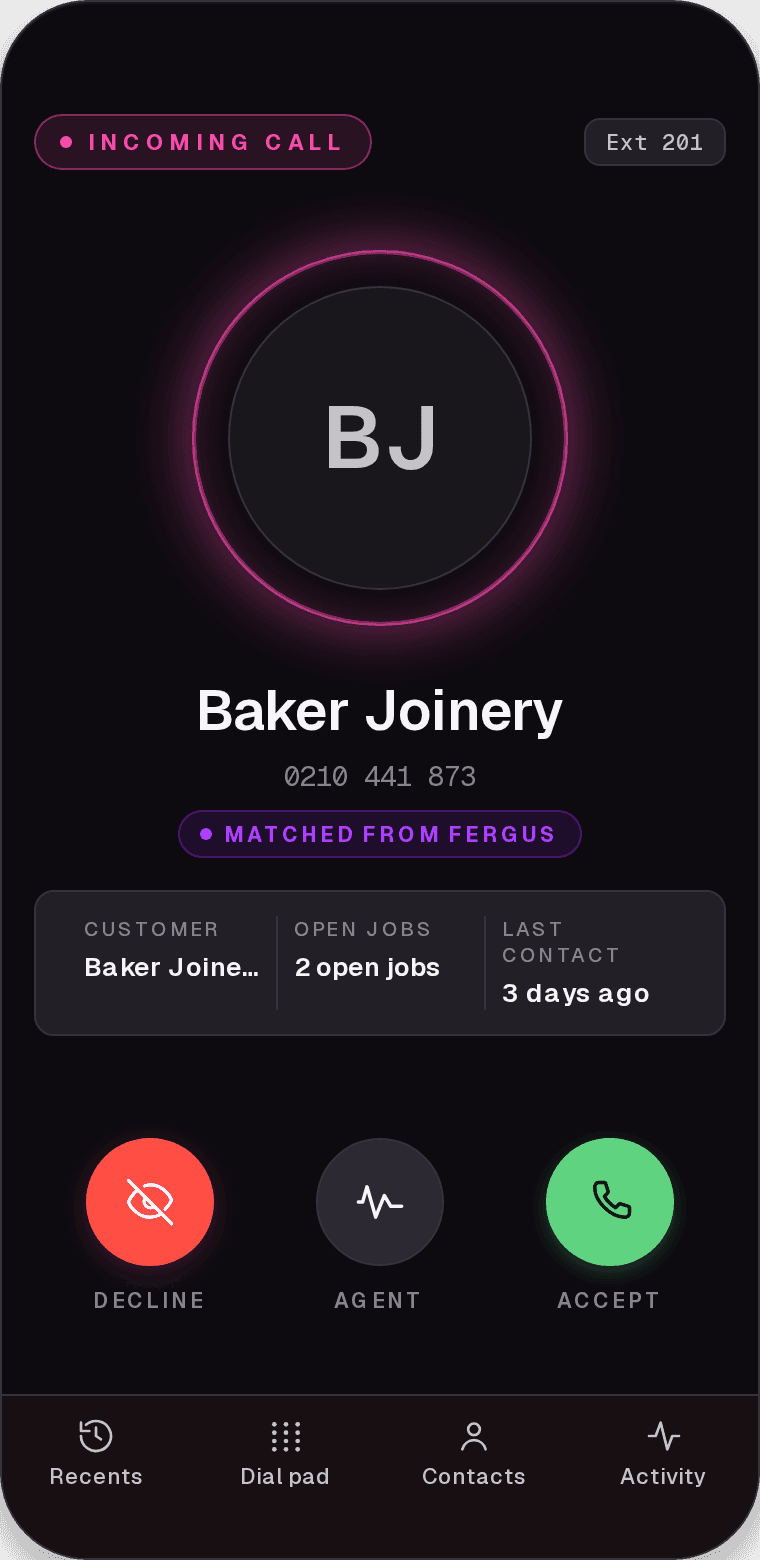
Incoming call
Ext 201
BJ
Baker Joinery
0210 441 873
Matched from Fergus
Customer
Baker Joinery
Open jobs
2 open jobs
Last contact
3 days ago

Every button works: answer, send it to an agent, transfer, or tap through the tabs. These are the app’s real screens, wired up.

Get it

On the phone, the desk and the browser.

One sign-in, one extension, every device you answer on. Pick yours.

Every download on one page:phone.h3llo.nz/download

Setting up

Three taps and you are on the phones.

  1. 01
    Sign in

    Use the email and password your H3llo admin set up for you. There is no magic link; it is a password, and your admin can reset it.

  2. 02
    Allow the microphone

    The app asks the first time. Without it, calls connect but nobody hears you.

  3. 03
    Allow notifications

    That is what makes an incoming call ring when the app is closed or in the background.

What it does

A real phone, with the agent's memory.

Everything below ships in the app today. Nothing on this page is a roadmap.

01

See who it is before you pick up

The ring screen shows the customer card: their name, how many jobs are open and when you last spoke, pulled from Fergus, Simpro or Xero. It is the same lookup the agent uses, so the two of you are never working from different notes.

  • Name, open jobs and last contact on the ring screen
  • Matched from Fergus, Simpro or Xero
  • Unknown numbers still show the number and the line they rang
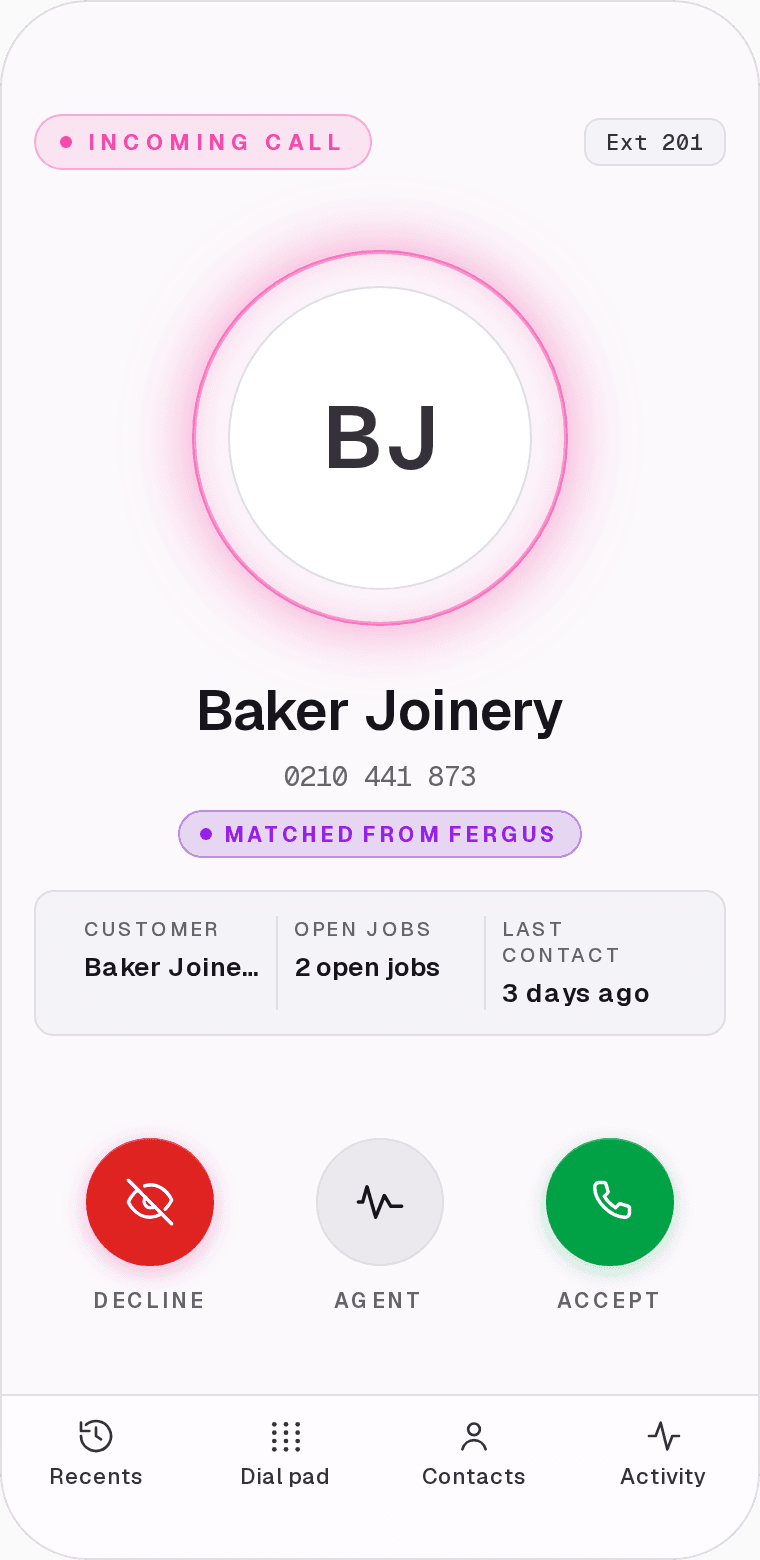
Incoming call from Baker Joinery, matched from Fergus, with Decline, Agent and AcceptIncoming call from Baker Joinery, matched from Fergus, with Decline, Agent and Accept
02

Send it to the agent with one tap

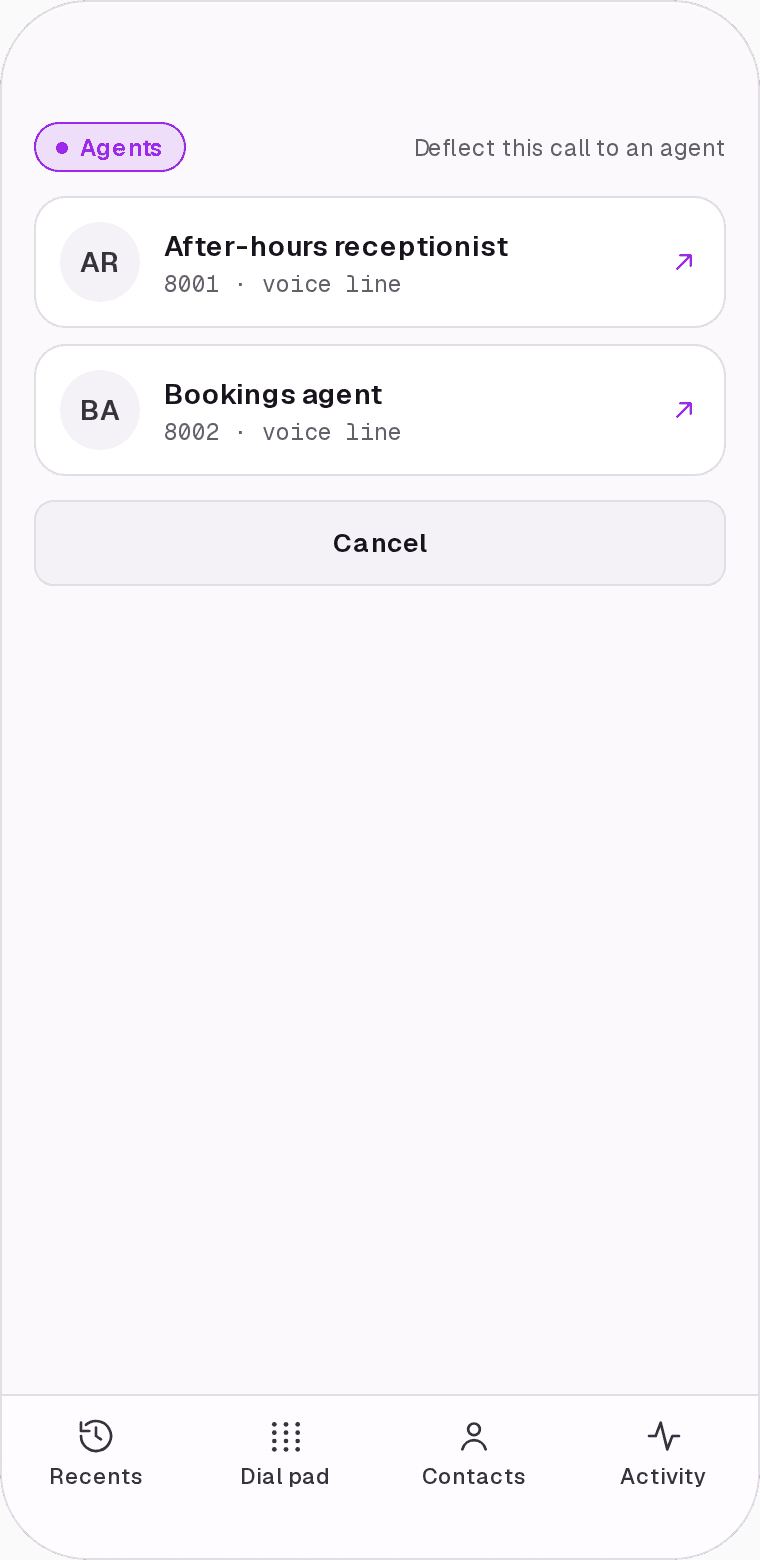
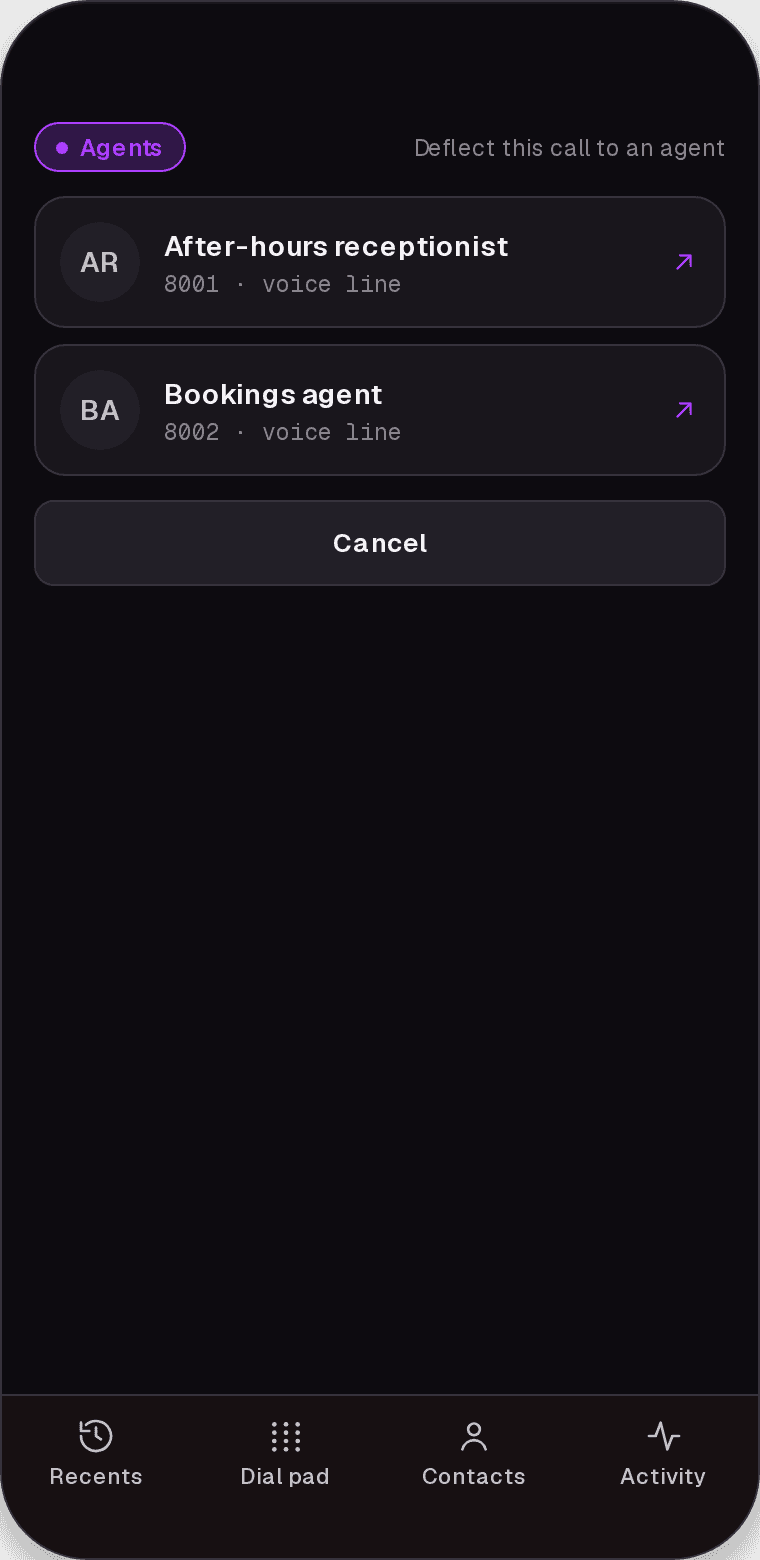
On the ring screen there is an Agent button next to Accept. Tap it and the caller goes to the receptionist instead of voicemail. Already on the call and need to get back on the tools? The same button is in the call controls, so you can hand over mid-call.

  • Before you answer, or during the call
  • The caller still gets booked in
  • You get the summary in Activity
Agent picker listing the after-hours receptionist and the bookings agentAgent picker listing the after-hours receptionist and the bookings agent
03

Transfer without losing anyone

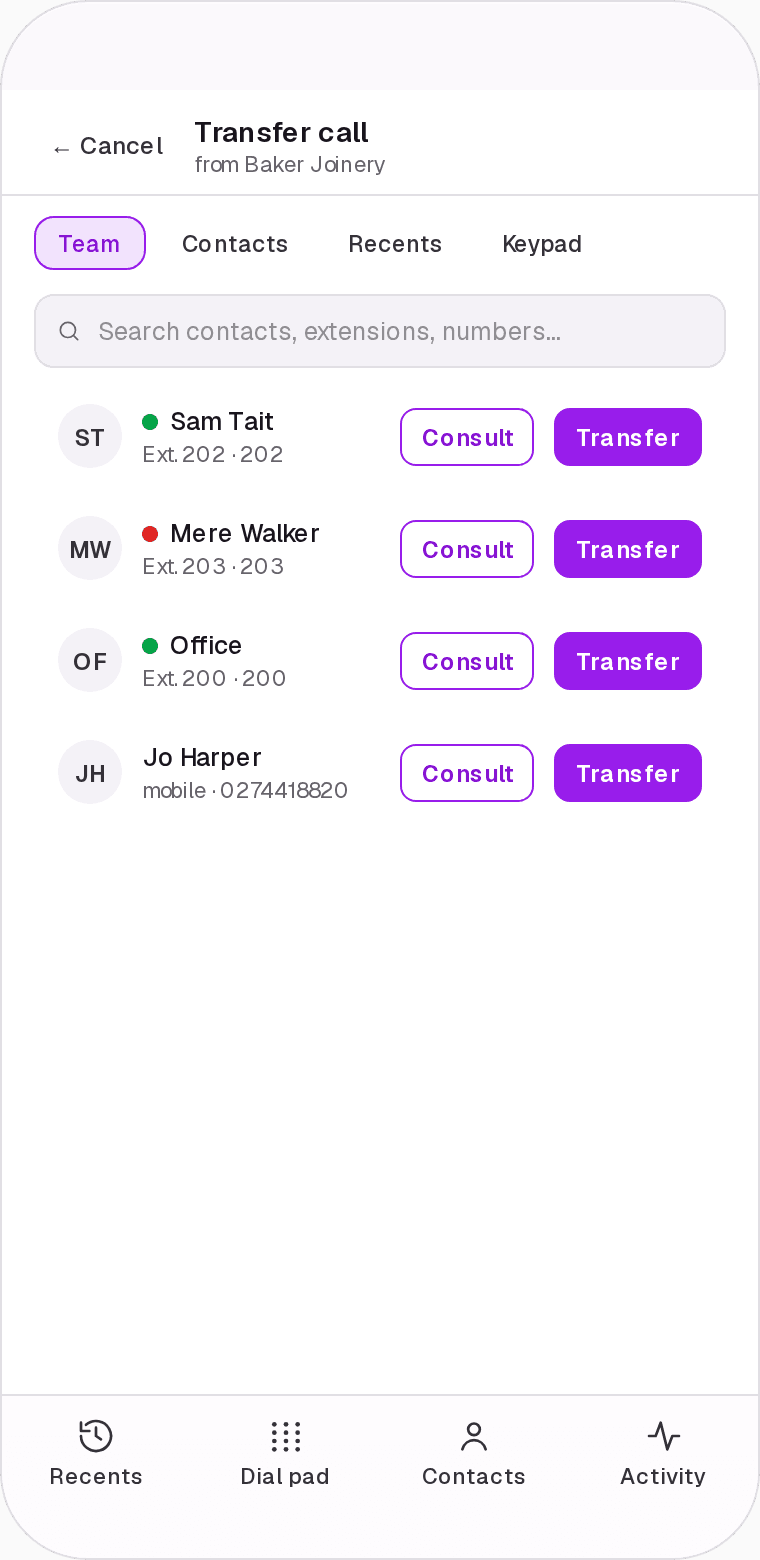
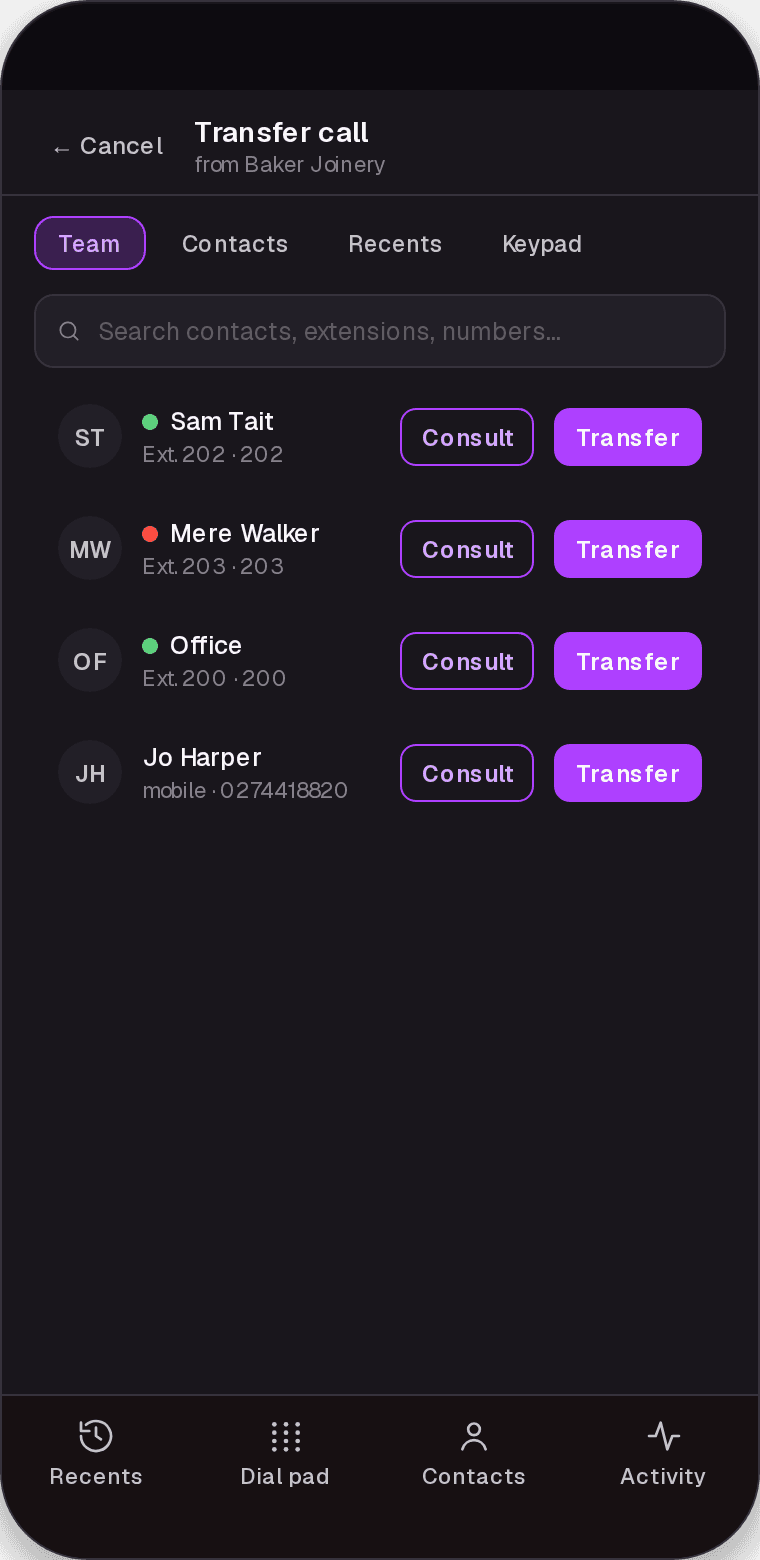
Attended transfer lets you talk to the person first; blind transfer sends the call straight through. Either way you pick from your extensions with a busy lamp beside each one, so you can see who is actually free before you send it.

  • Attended or blind
  • Busy lamps on every extension
  • Pull the call back if nobody picks up
Transfer sheet with busy lamps beside each extension, and Consult and Transfer buttonsTransfer sheet with busy lamps beside each extension, and Consult and Transfer buttons
04

Every contact from every tool

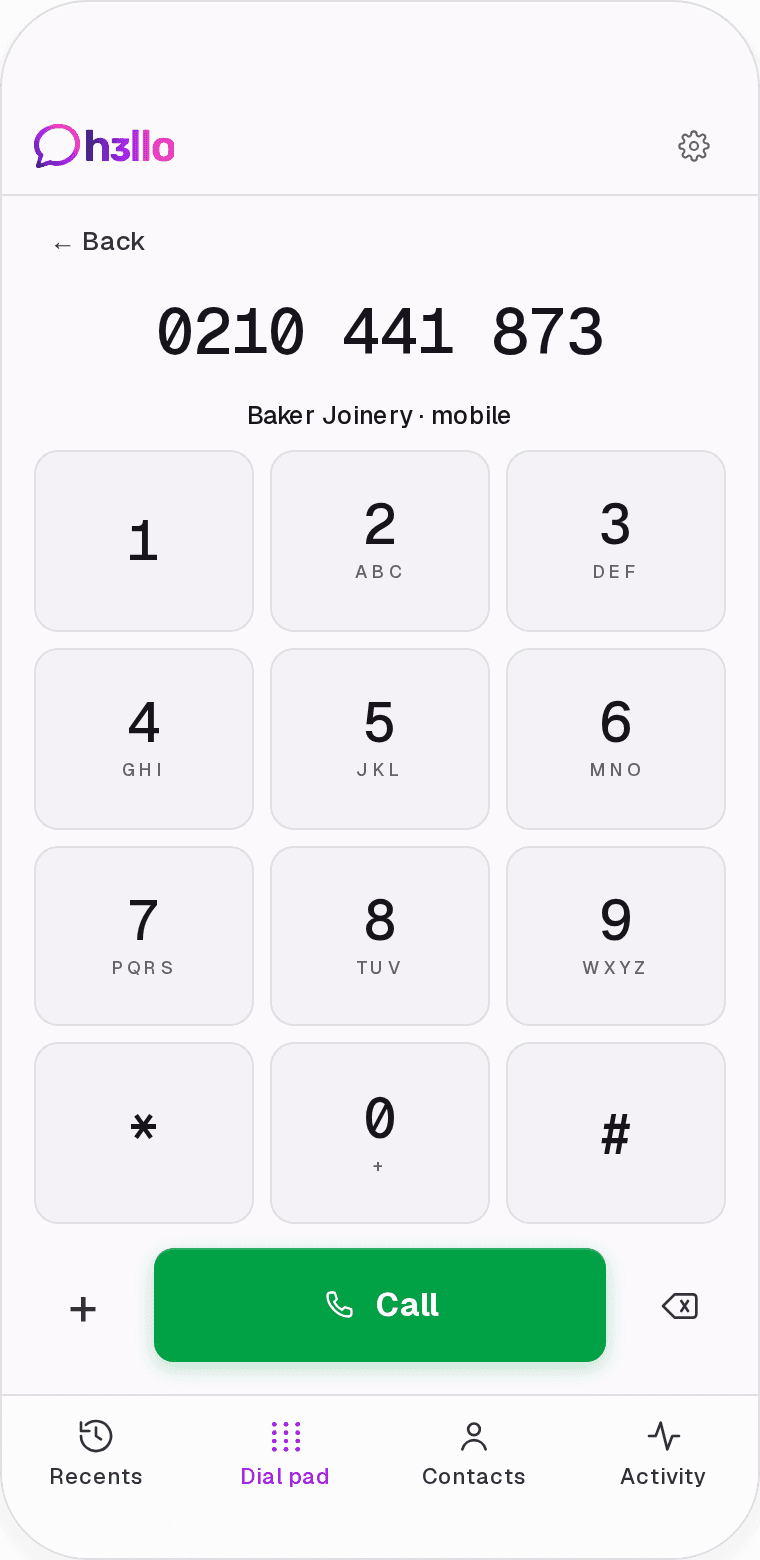
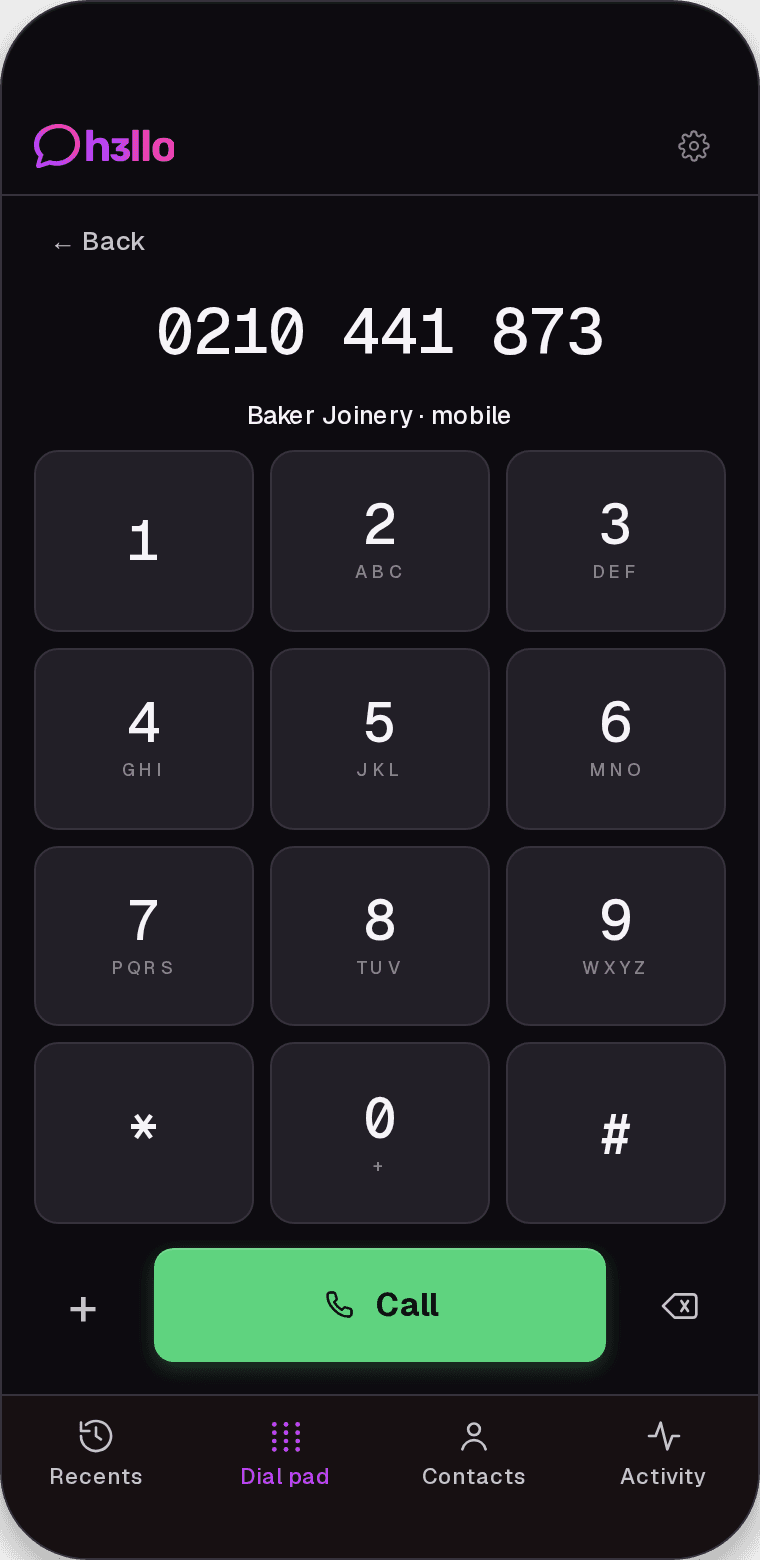
Start typing on the dial pad and it searches your contacts in Fergus, Simpro and Xero as you go. Type a number and the caller ID matches while you are still keying it in. No copying numbers out of the job.

  • Search Fergus, Simpro and Xero from the dial pad
  • Live caller-ID match as you type
  • Tap a result to ring it
Dial pad matching the typed number to Baker JoineryDial pad matching the typed number to Baker Joinery
05

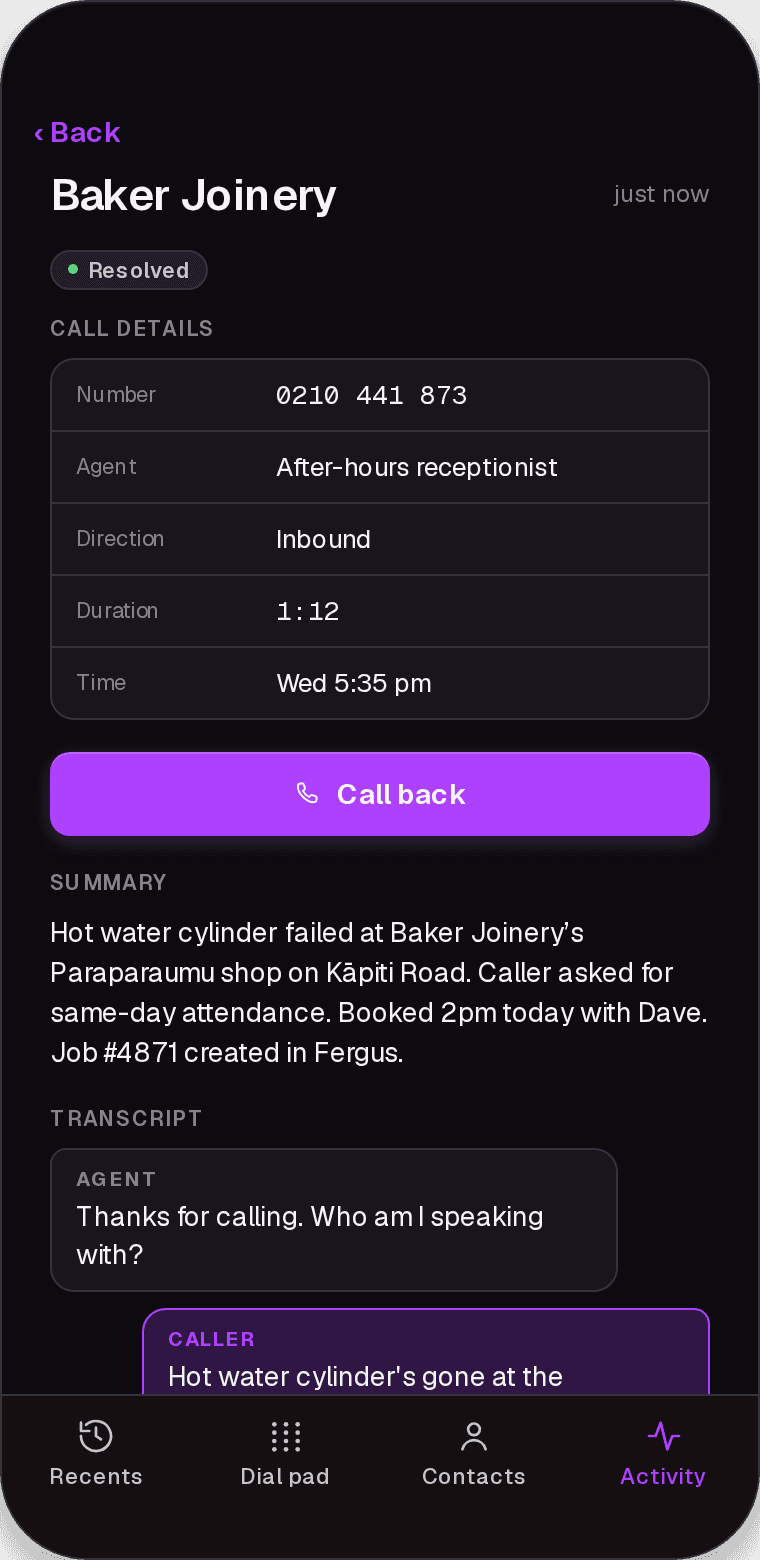
Read what the agent said

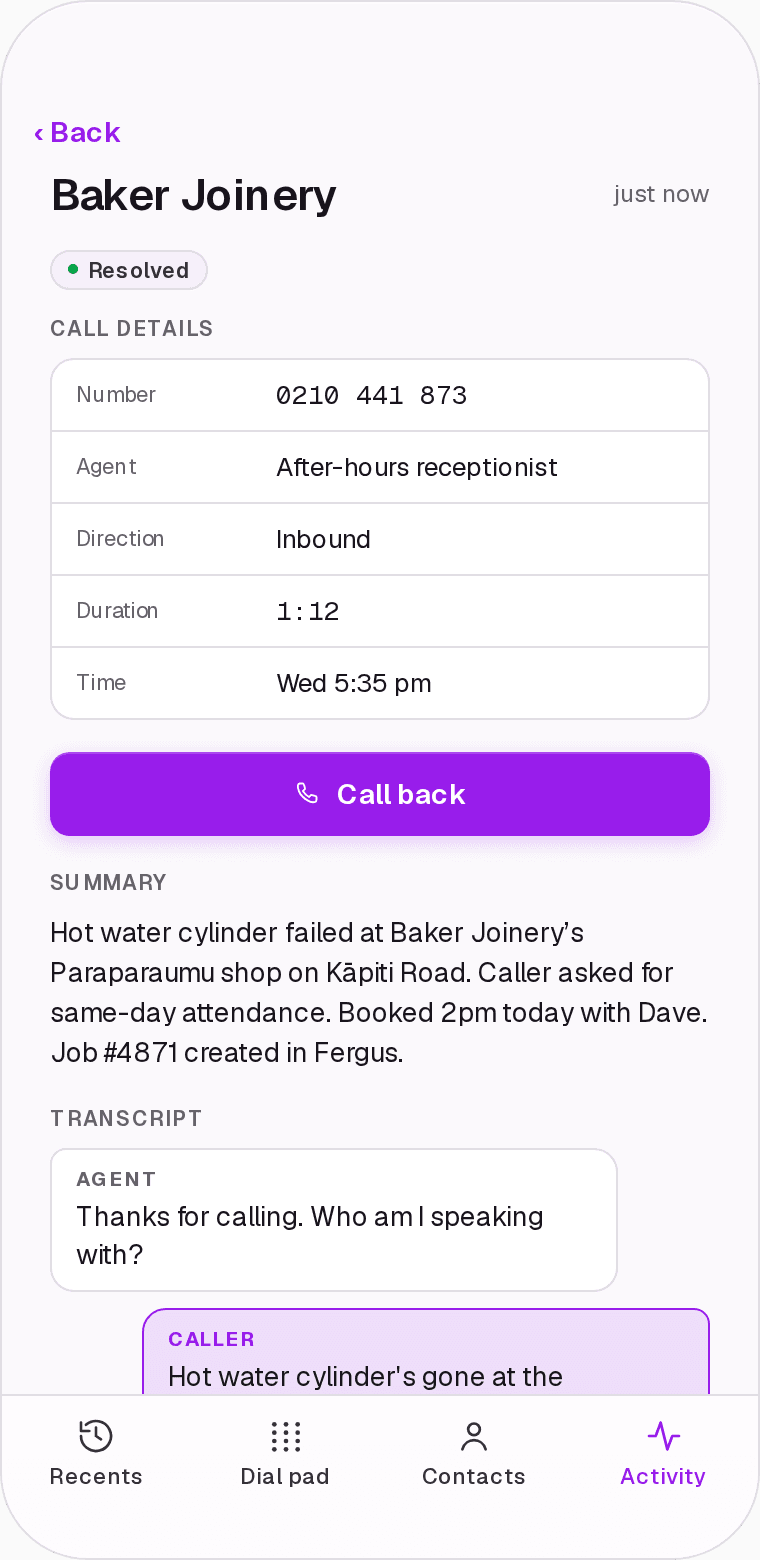
Every call the agent takes lands in Activity with a summary and the full transcript. If the caller needs a person, the call-back button rings them from your extension, with your number showing.

  • Summary and transcript of every agent call
  • Call back from the detail screen
  • Same record the office sees in the portal
Activity detail with call details, a Call back button, the summary and the transcriptActivity detail with call details, a Call back button, the summary and the transcript
06

Rings like a phone

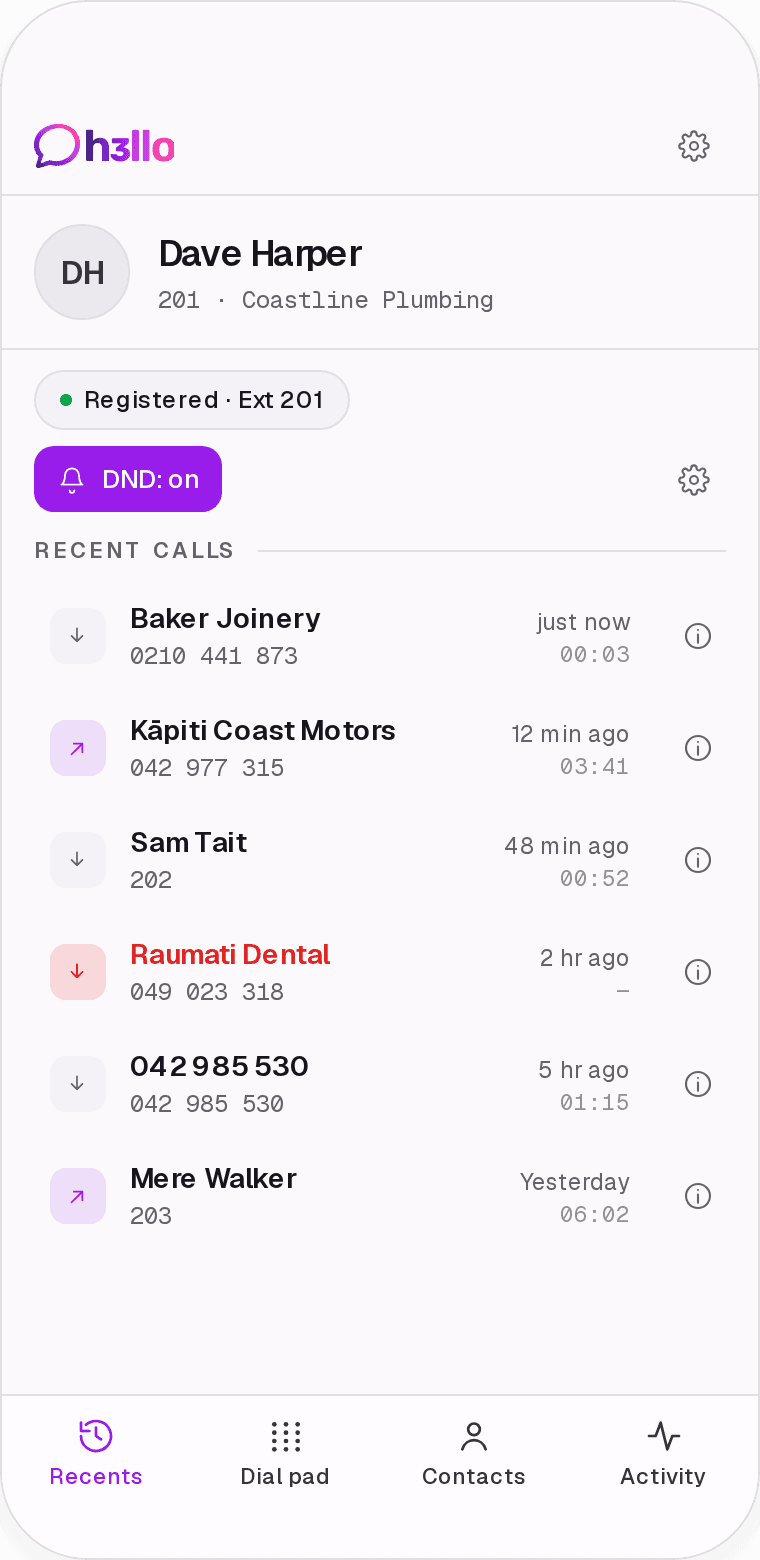
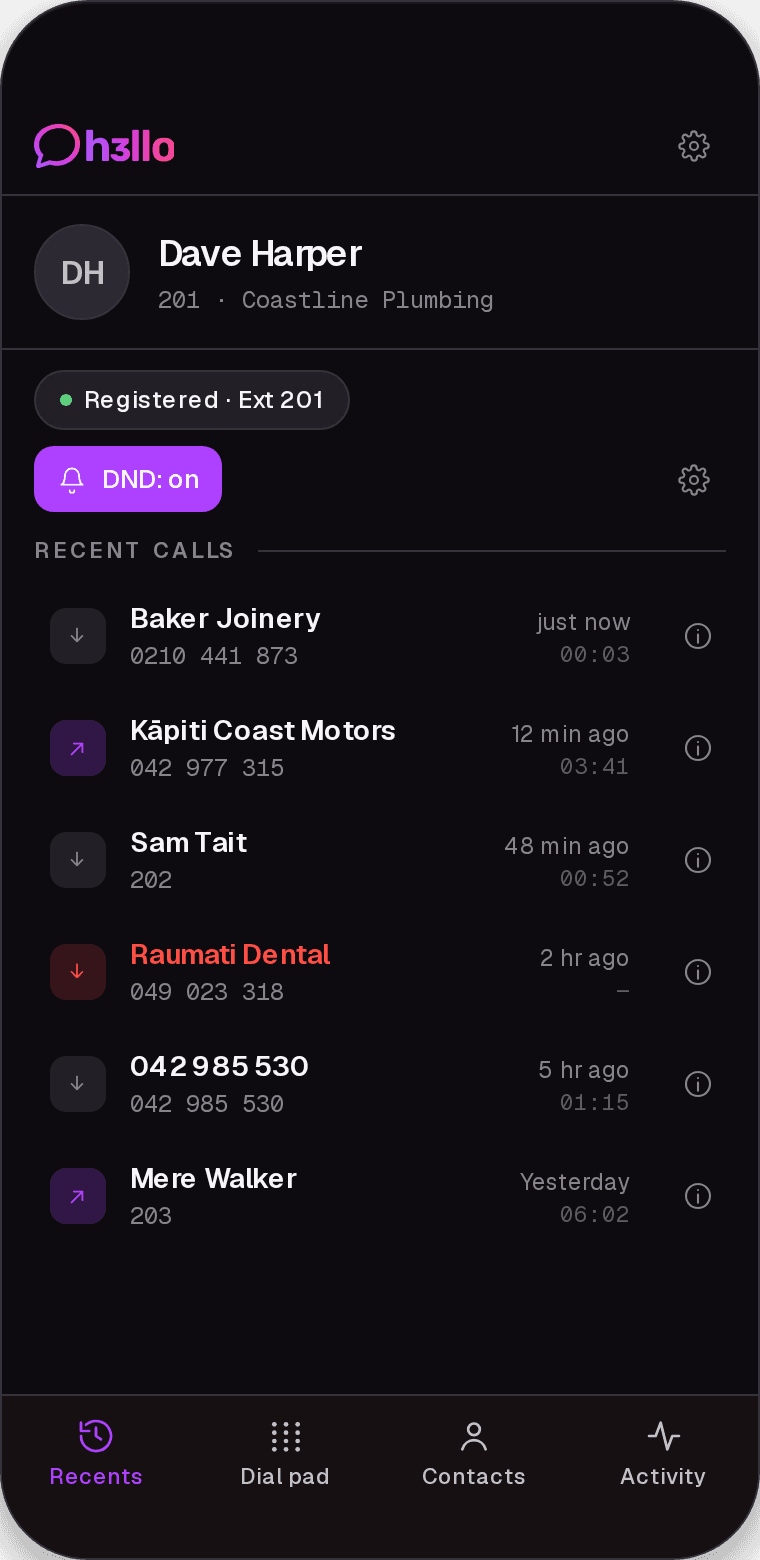
On iPhone and Android an incoming call uses the native call screen, so it rings even with the app closed and answers from the lock screen. Sign in on the desk and the ute; two devices can share one extension and both ring. When you need a quiet hour, turn on Do Not Disturb and calls go where your routing sends them.

  • Native incoming-call screen on iPhone and Android
  • Two devices on one extension
  • Do Not Disturb, one switch
Recents with Do Not Disturb switched onRecents with Do Not Disturb switched on

Put the phones in the crew’s pockets.

H3llo Phone comes with every H3llo line. Get started and your extensions are ready to sign in the same day.